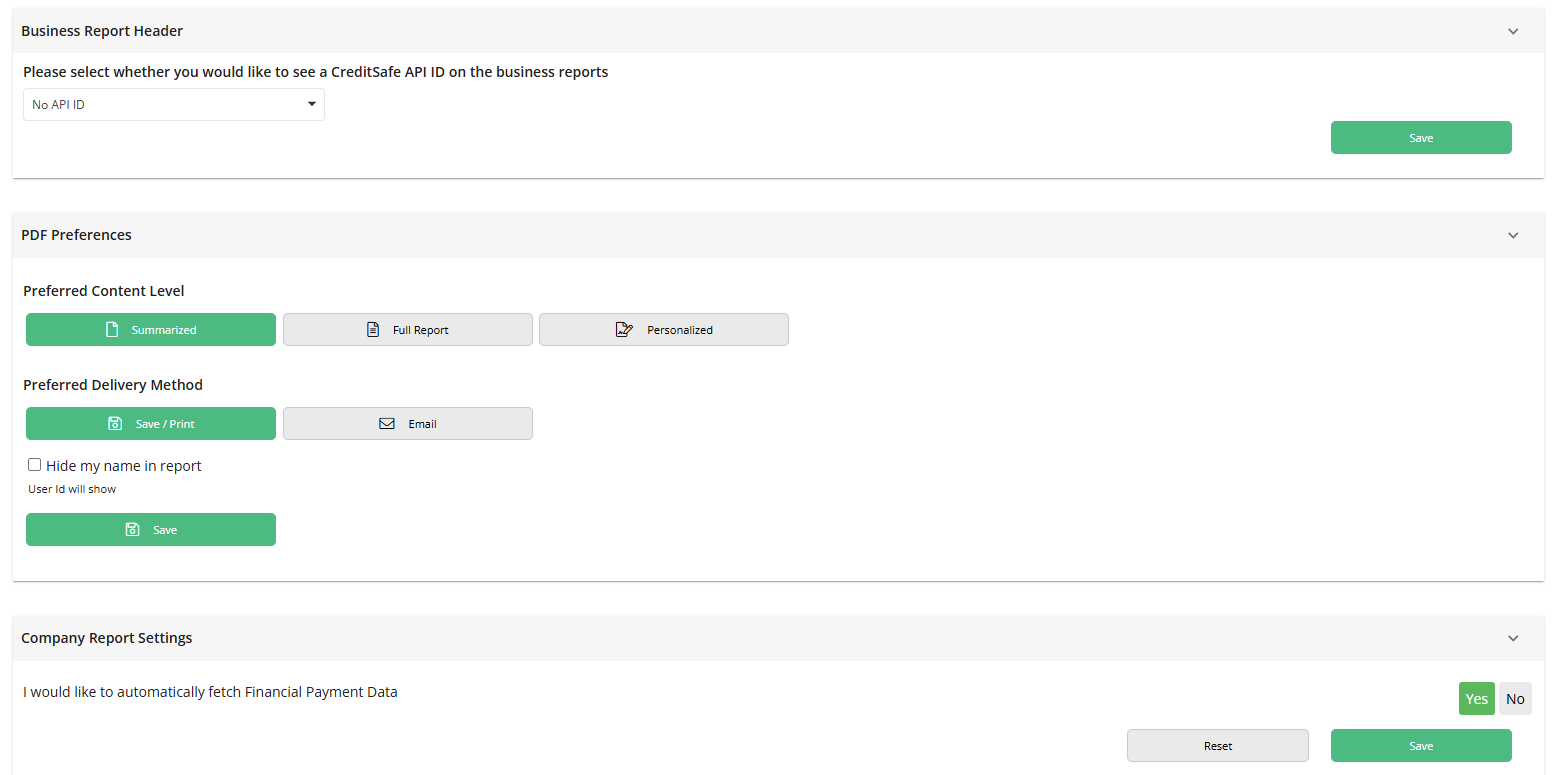
You can access your profile details by logging in clicking on the "My Account" button in the top right-hand corner.
Summary Tab:
Your Details
The Your Details section displays your user profile information associated with your Creditsafe account.
What you can do
- Review/edit your contact information.
- Change your preferred language from the available options.
- Select Save Changes to update your language preference.
Account Security
The Account Security section allows you to manage your account password.
- Select Change Password.
- You will be redirected to the Creditsafe Login Application.
- Follow the prompts to create and confirm a new password.
- Save your changes to update your login credentials.
Note: Password changes cannot be completed directly within the My Account page.
Preferences
Click on dropdown to change language preferences
Terms & Conditions
The Terms & Conditions section provides access to the agreements and service terms associated with your Creditsafe account.
What you can do
- Review available agreements and compliance documentation.
- Select View Terms to open the full terms and conditions.
- Select View Services to see the services covered by each agreement.
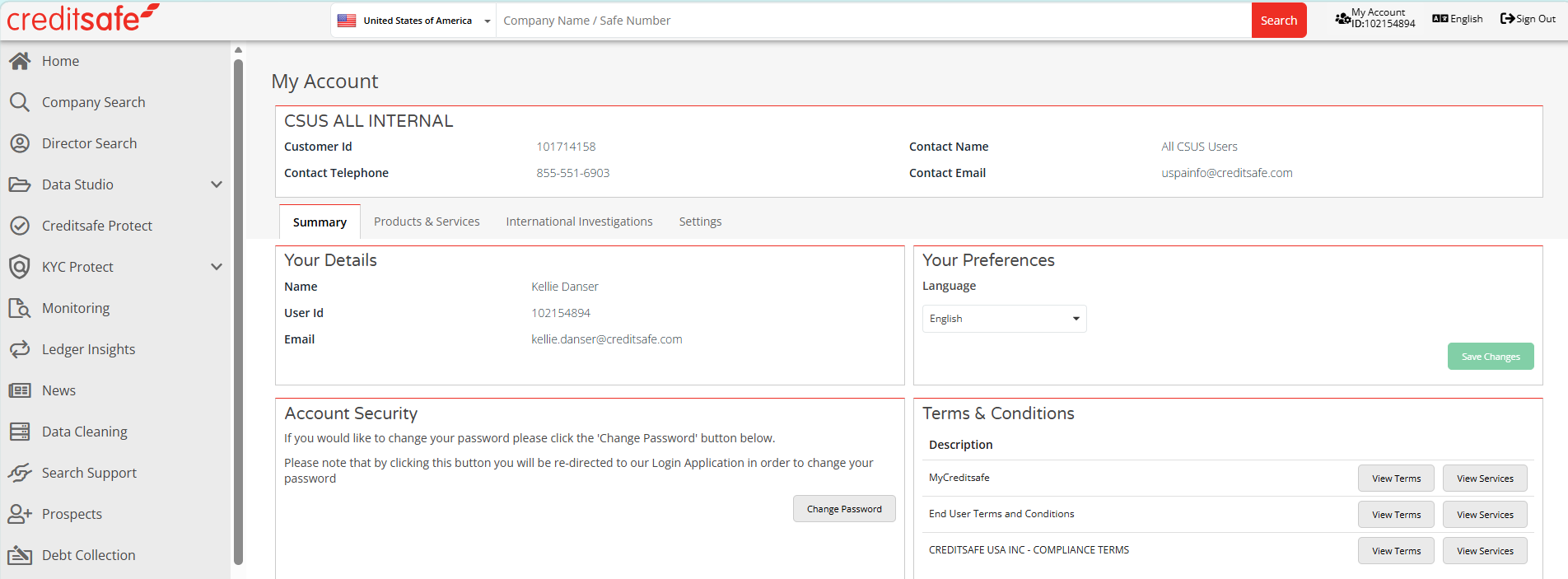
Products & Services:
What you can do
- View all subscribed products and services.
- Check available and remaining credits for each product.
- Monitor consumption against your allocated usage limits.
- Review renewal dates for each service.
Use this page to understand your current entitlement levels and monitor product usage throughout your subscription period.
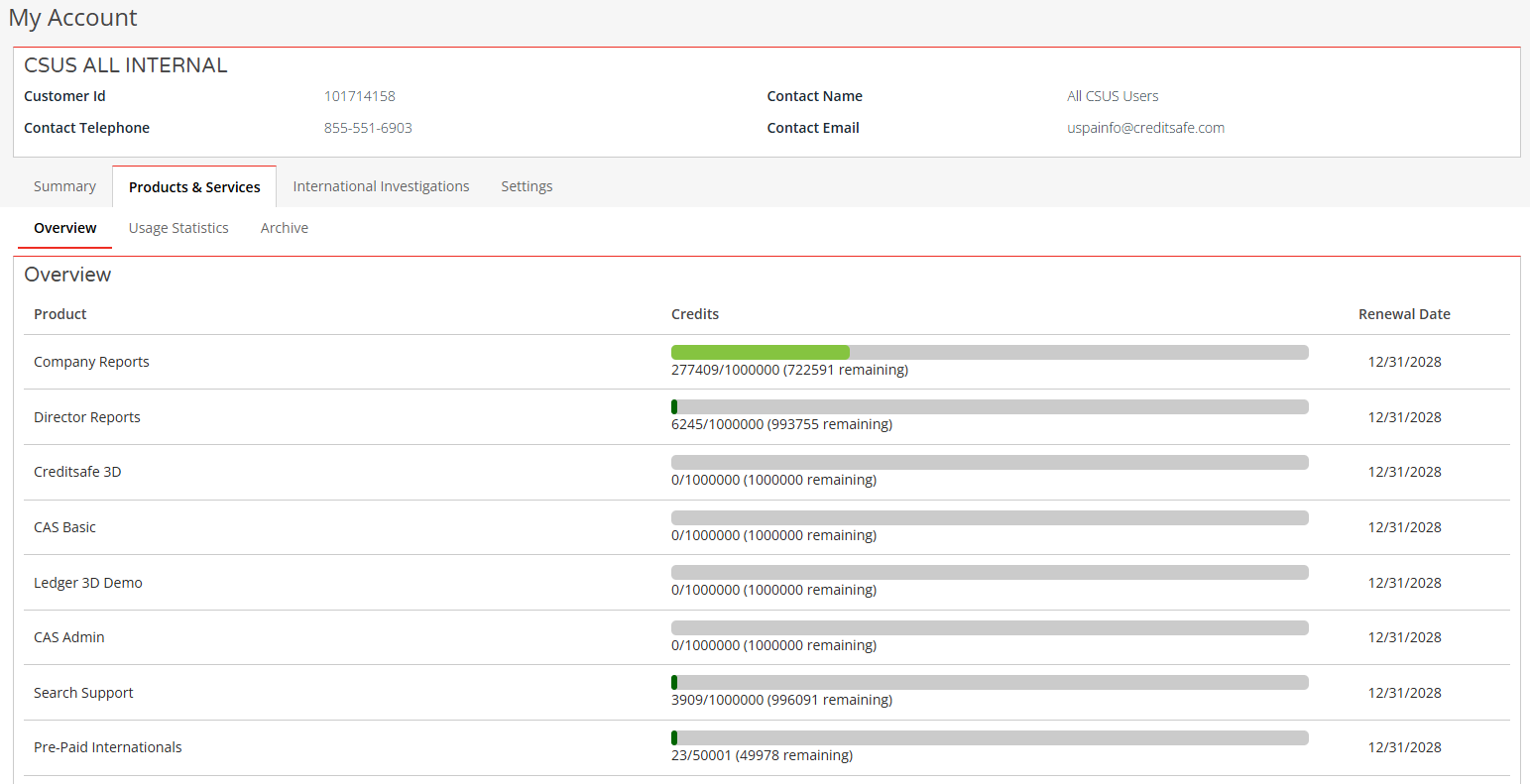
Usage Statistics:
The Usage Statistics section allows you to review report activity and product usage within a selected date range.
What you can do
- Select a start and end date.
- Filter results by:
- Product/Country
- Search Name
- Select Update to refresh the results.
- Review usage details including:
- User Name
- Company searched
- Product used
- Date and time of access
- Credit score (where applicable)
- Credit limit information (where applicable)
This section is useful for monitoring user activity and understanding how credits are being utilized.
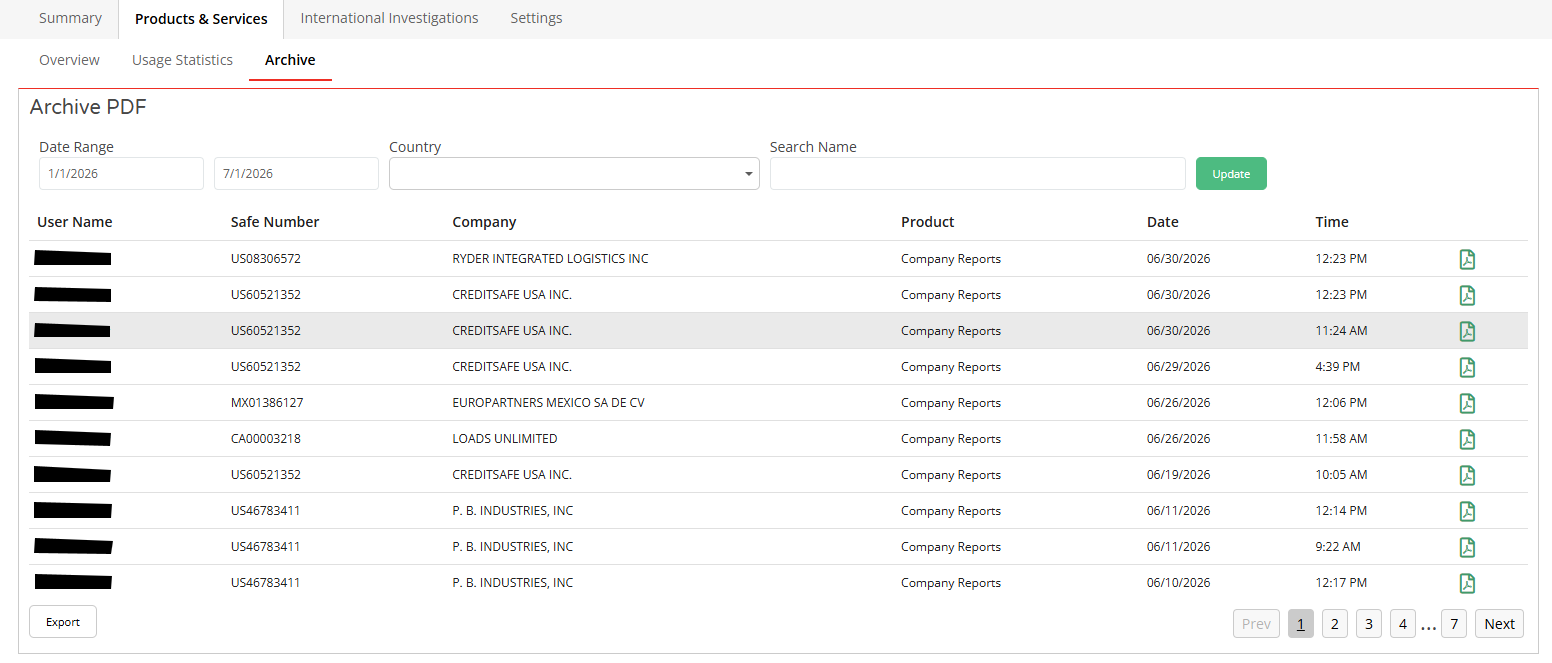
Archive:
The Archive section stores previously viewed reports and allows users to retrieve historical report PDFs.
What you can do
- Filter archived reports by:
- Date range
- Country
- Search name
- Select Update to refresh the results.
- View archived report information, including:
- User name
- Safe Number
- Company name
- Product
- Date and time viewed
- Select the PDF icon to download or review an archived report.
This section allows quick access to reports that have been previously generated without performing a new search.
International Investigations:
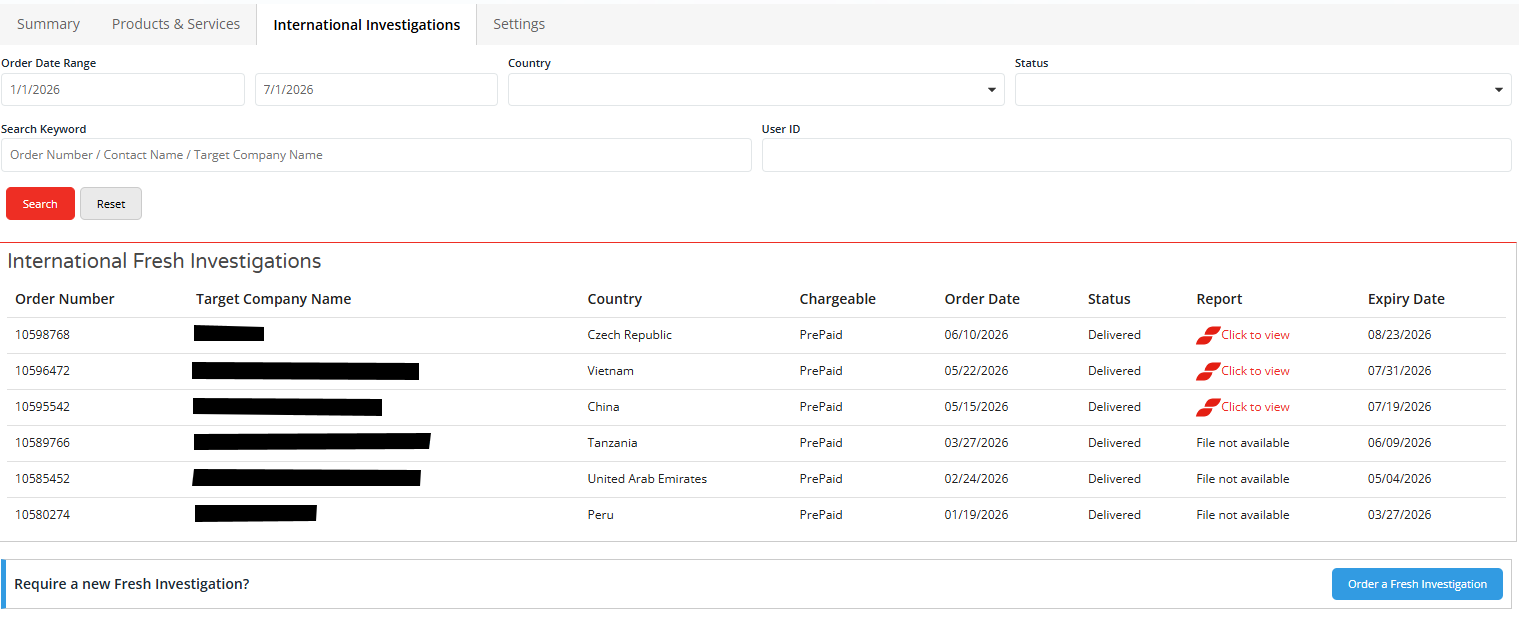
The International Investigations page allows you to search for and manage Fresh Investigation orders.
Search
- Filter investigation orders by:
- Order date range
- Country
- Status
- Search keyword
- User ID
- Select Search to display matching investigations.
- Review investigation details, including:
- Order number
- Target company name
- Country
- Order type
- Order date
- Status
- Expiry date
- Open completed investigations by selecting Click to view when a report is available.
Order Fresh Investigation
Fresh Investigations provide enhanced company information for organizations where standard report data may be limited or unavailable.
- Select Order a Fresh Investigation.
- Enter details for the company you wish to investigate.
- Submit the request.
- Track the investigation status from the International Investigations page.
- Access the completed report once it has been delivered.
Settings:
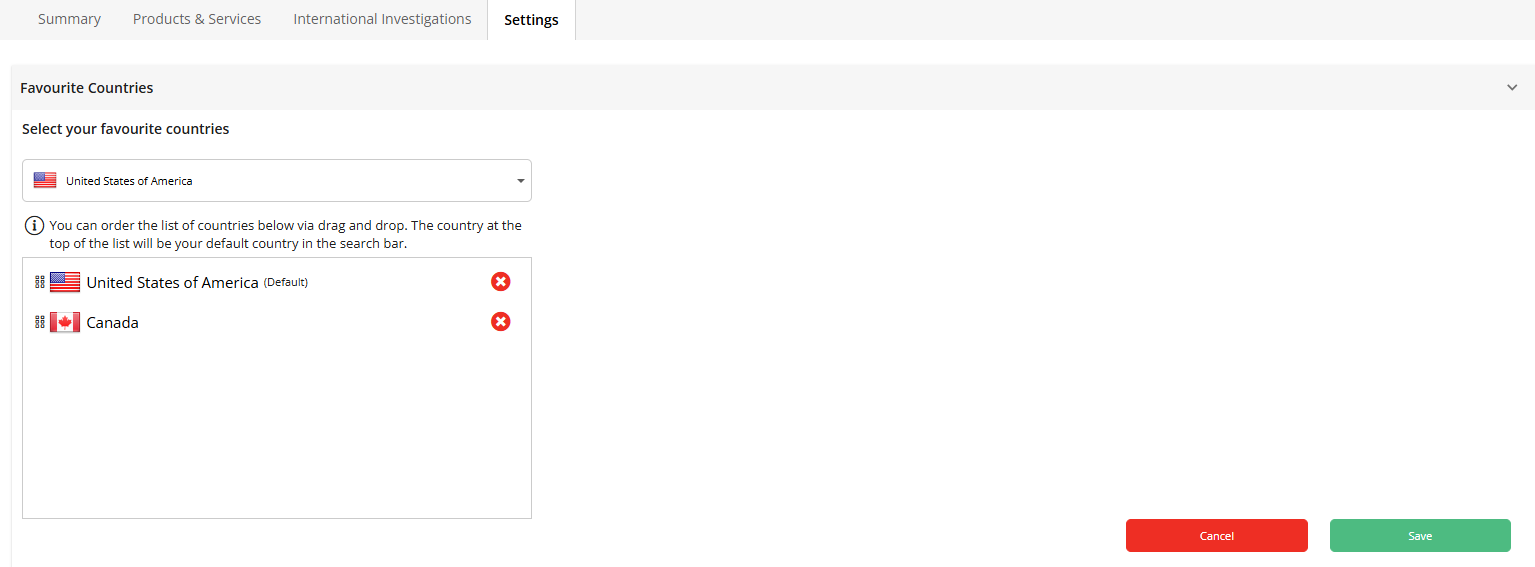
Favorite Countries
The Favourite Countries setting lets you customize the countries that appear in your search experience.
- Select countries to add to your favorites list.
- Rearrange countries using drag-and-drop.
- Set the default country used in the global search bar.
- Select Save to apply your preferences.
Tip: The country listed at the top becomes your default search country.
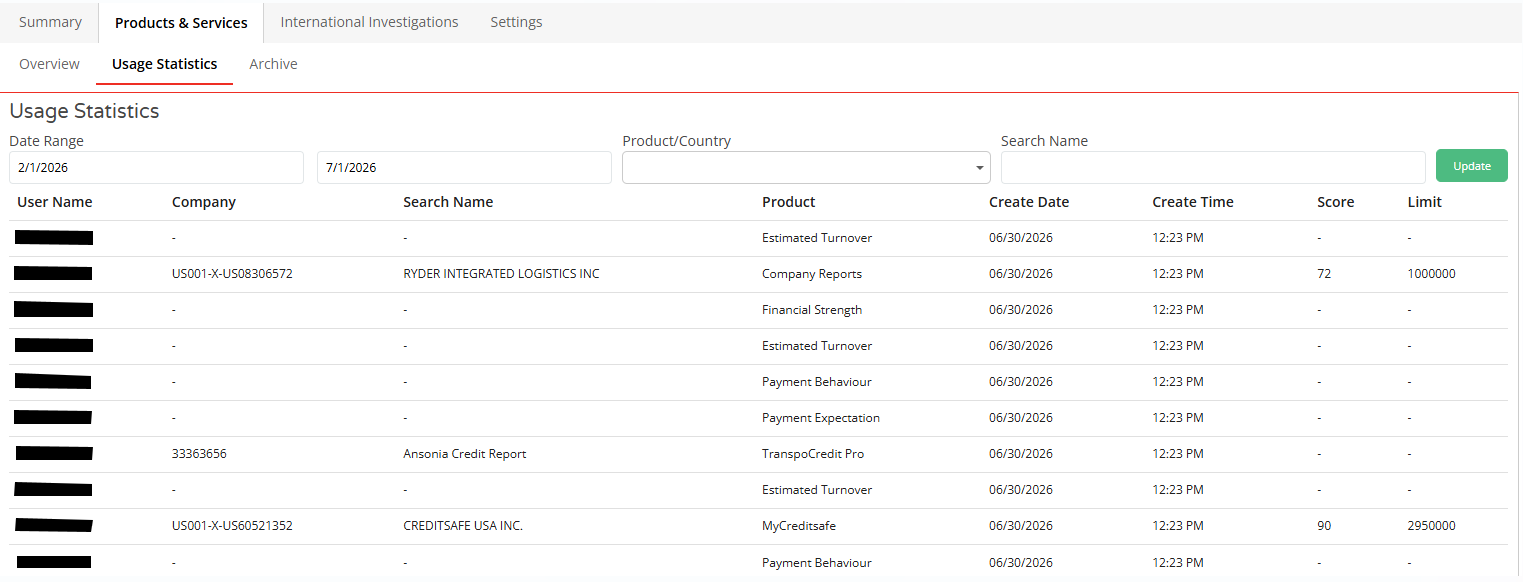
Business Report Header
The Business Report Header setting controls whether a Creditsafe API ID appears on generated business reports.
- Select your preferred display option.
- Choose whether to include an API ID on reports.
- Select Save to update your preference.
PDF Preferences
The PDF Preferences section allows you to customize how PDFs are generated and delivered.
Preferred Content Level
Choose how much information is included in report PDFs:
- Summarized – Key information only.
- Full Report – Complete report content.
- Personalized – Customized content based on your saved settings.
Preferred Delivery Method
- Select how reports are delivered:
- Save/Print – Opens the report for download or printing.
- Email – Sends the PDF report to your email address.
Additional Options
- Hide my name in report: Prevents your name from appearing in generated reports. Your User ID will be displayed instead.
Steps
- Select your preferred content level.
- Choose your preferred delivery method.
- Configure additional display options.
- Select Save to apply your settings.
Company Report Settings
The Company Report Settings section controls whether additional financial payment information is automatically retrieved
when viewing company reports.
- Select Yes to automatically fetch Financial Payment Data.
- Select No to disable automatic retrieval.
- Select Save to apply your preference.
- Use Reset to return to the default setting.