
This article explains how to run a Consumer Report within the Creditsafe platform after your Consumer Reports service has been approved and activated. Follow the steps below to locate, order, and review a Consumer Report for an individual.
How to Run a Consumer Report
Consumer Reports provide credit information on an individual and can help support consumer-related decision-making processes. Before you can run a Consumer Report, your account must be approved and credentialed for Consumer Report access.
Before You Begin
Make sure:
- Your company has completed the Consumer Reports credentialing process.
- Consumer Reports service has been activated on your account.
- Your user profile has access to the Consumer Reports product group.
- You have a permissible purpose for pulling a consumer report in accordance with applicable regulations.
If you are unsure whether your account has Consumer Report access, contact your account administrator or Creditsafe Support.
How to Run a Consumer Report
Step 1: Log in to Creditsafe
- Sign in to your Creditsafe account.
- From the main dashboard, locate and select Director Search.
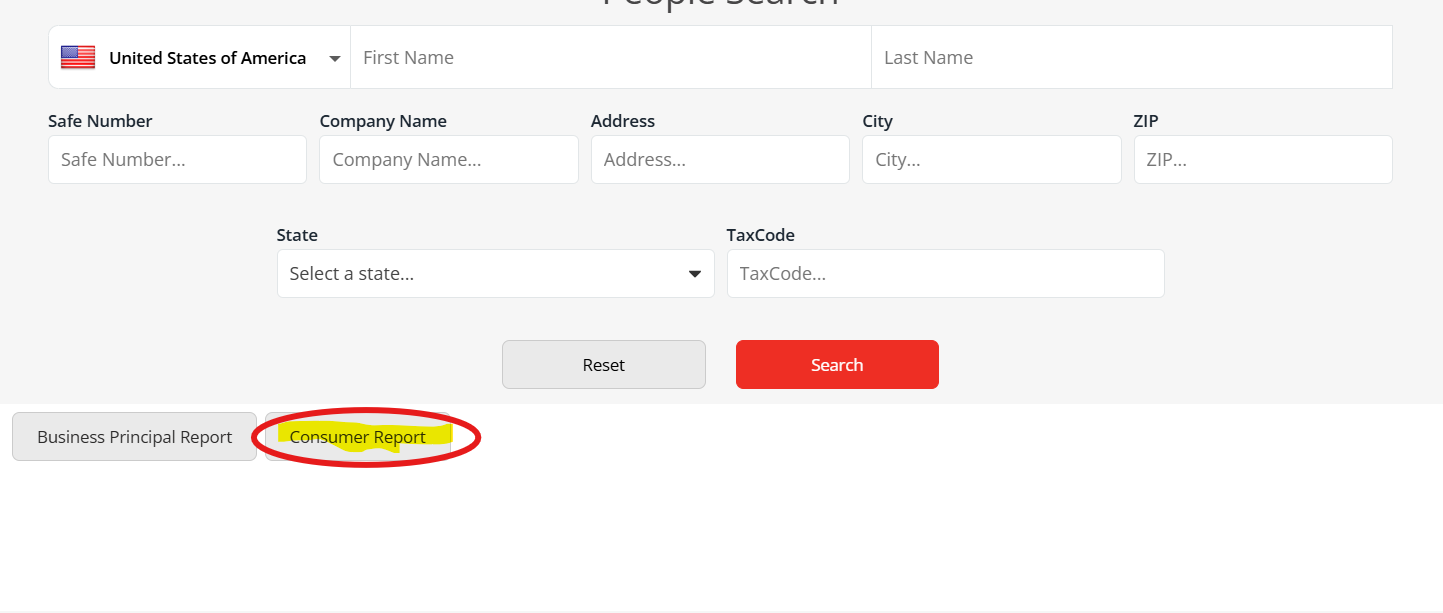
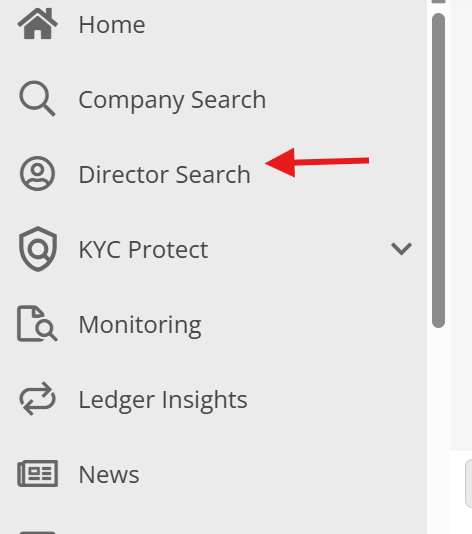 Step 2: Access Consumer Reports
- Select Consumer Reports from the navigation menu.
- Confirm you have been assigned the correct product group.
- Contact your account administrator if additional permissions are required.
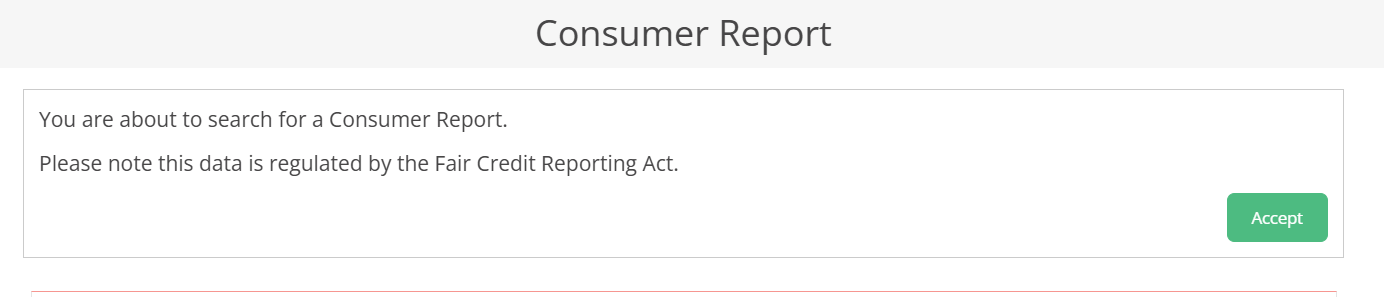
Step 3: Accept the Consumer Report Notice
Before proceeding with the search, you will see the Consumer Report notice shown above.
Select Accept to acknowledge the notice and continue to the Consumer Report search.
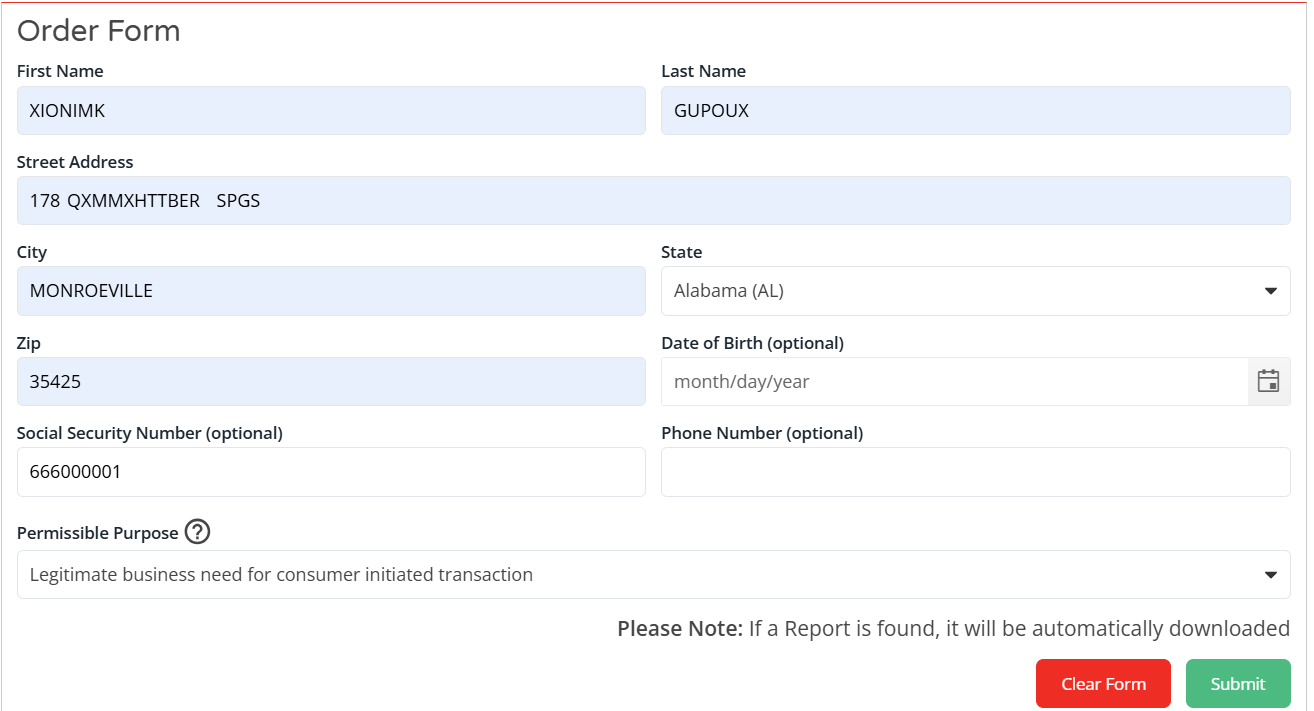
Enter the required information for the individual:
- Full Name
- Full Address
- Permissible Purpose
- Social Security Number (SSN) or Date of Birth (DOB)
For a more accurate match, be sure to provide either the individual’s SSN or DOB along with the required information above.
Tip: Make sure all information is entered accurately before submitting the search to help improve the accuracy of the match results.
Step 4: Review and Save the Consumer Report
- Review the search results and verify the individual using the information displayed.
- Select the correct record to open the Consumer Report.
- Once the report is pulled, review the information to ensure you have selected the correct individual.
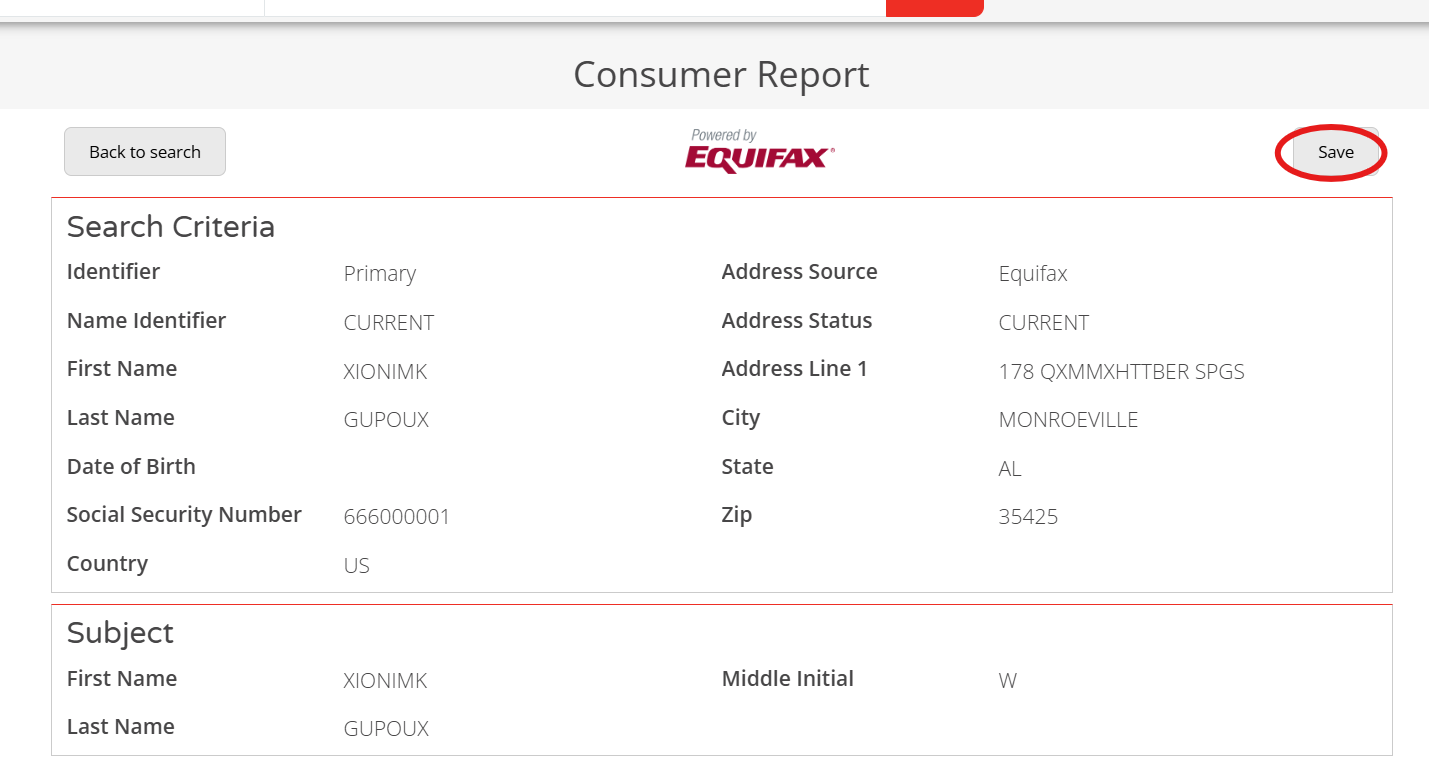
- The report will not automatically save after it is pulled. If you would like to keep a copy, select the PDF option located in the top corner of the report, as shown below, to save a PDF copy.
Tip: If you need to retain the report for your records, be sure to save the PDF before leaving the report.
Step 5: Review the Report
The report may contain information such as:
- Consumer identification details
- Credit inquiries
- Tradelines
- Public records
- Summary information
- Other credit-related data available through the service
Review the information carefully and retain documentation according to your organization's compliance requirements.