
Overview
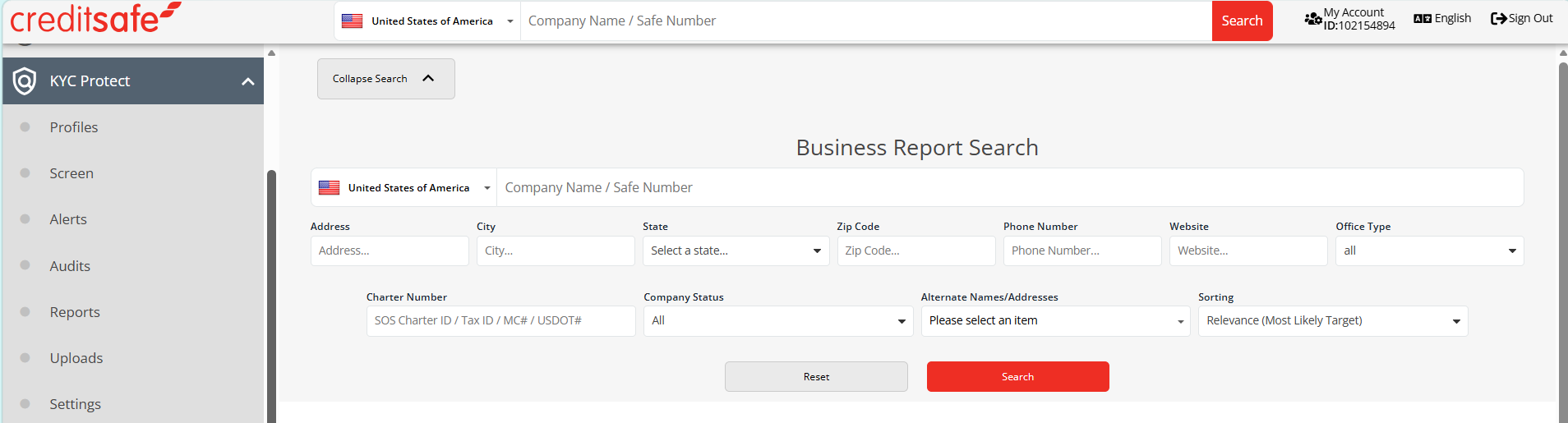
KYC Protect is accessed within the Creditsafe.com platform and is designed to help users manage customer due diligence, AML screening, and ongoing monitoring. The main navigation menu provides quick access to all core features needed to create profiles, run checks, and maintain compliance workflows.
Accessing KYC Protect
- Log into the Creditsafe.com platform.
- From the main navigation, select KYC Protect.
- The KYC Protect menu will appear, displaying all available modules.
KYC Protect Menu Options
The menu is made up of seven key sections:
1. Settings
Used to configure system-wide preferences for AML screening and monitoring.
- Define sanctions lists and datasets
- Set screening thresholds
- Configure default monitoring settings
- Manage email alert notifications
2. Profiles
The central workspace where all customer or entity records are stored and managed.
- Create new profiles (manual or from business reports)
- Search, filter, and manage existing profiles
- Assign profiles and update KYC status
3. Screen
This is where AML screening is performed.
- Run checks against sanctions, PEPs, and watchlists
- Customize datasets and search criteria
- Save and reuse screening templates
4. Alerts
Displays notifications generated from screening and monitoring activities.
- View new AML or KYC alerts
- Access flagged matches directly
- Configure alert delivery settings
5. Audits
Provides a complete audit trail of all actions taken within KYC Protect.
- Track profile changes, screening activity, and decisions
- Filter by user, date, or action type
- Export audit logs for compliance purposes
6. Reports
Used to generate downloadable reports for compliance and analysis.
- Export AML screening results
- Review historical alert activity
- Download data in CSV format
7. Uploads
Supports bulk actions using CSV files.
- Create multiple profiles at once
- Run bulk AML screening
- Add profiles to monitoring or delete in bulk
How the Menu Supports Your Workflow
The KYC Protect menu is structured to follow a typical compliance journey:
- Configure your environment in Settings
- Create and manage entities in Profiles
- Perform due diligence using Screen
- Monitor activity through Alerts
- Track actions in Audits
- Report on activity via Reports
- Scale operations using Uploads
Tips for Efficient Navigation
- Start in Profiles - this is where most daily work begins
- Use Screen directly from a profile for faster AML checks
- Regularly review Alerts to stay on top of new risks
- Use Audits and Reports for compliance reviews and recordkeeping